Quiet review
Use WhatsApp Voice Note to Text when listening out loud would be disruptive. A transcript lets you scan the message, find the main point, and respond without replaying audio repeatedly.
WhatsApp voice note transcription
VoiceNoteToText helps you read long WhatsApp voice notes without replaying audio. Save the voice note file, upload it, and get a clean transcript you can copy, scan, or download.
Upload a saved voice note, record something new, or paste a public audio link. Preview your audio, then transcribe when you’re ready.
Upload or drag your voice note here
MP3, WAV, M4A, OGG, OPUS, and WebM
Up to 10 MB · 10 minutes per clip
Your transcript will appear here after you transcribe your audio.
A quick transcript is useful when listening again is slow, noisy, or inconvenient.
What to expect from your audio and the result.
WhatsApp Voice Note to Text is a focused VoiceNoteToText workflow for converting WhatsApp voice notes into readable text. It is useful when replaying audio is slow, inconvenient, noisy, or difficult to search later.
Preview the recording before you transcribe it, choose the language that fits, and keep the result as a text file or copy it into your notes.
This is not a claim of perfect transcription. The output should be reviewed, especially when the audio contains names, numbers, addresses, legal statements, medical language, customer details, or quotes that may be reused elsewhere.
The process is intentionally simple: choose an audio source, transcribe it, then use the text.
Save, record, or locate the WhatsApp voice notes you are allowed to process.
Upload the file, record in the browser, or paste a supported public audio link.
Select the closest supported language or use auto detect when uncertain.
Check important details, then copy or download the transcript.
A few everyday ways to use your audio.
Use WhatsApp Voice Note to Text when listening out loud would be disruptive. A transcript lets you scan the message, find the main point, and respond without replaying audio repeatedly.
Text is easier to search, quote, paste into tasks, and organize. This helps students, support teams, creators, researchers, and business owners turn spoken updates into usable notes.
After transcription, pull out dates, requests, action items, names, and questions. The transcript becomes source material for a cleaner summary rather than the final record by itself.
Practical ways to get a transcript that is easier to review.
Clear speech, low background noise, and a steady speaking pace improve transcript reliability. If a voice note is too noisy, ask for a clearer recording when the content matters.
Short clips are easier to upload, retry, read, and correct. If the recording is long, trim it around the section you need before transcription.
Do not paste transcripts into client work, public posts, or official notes without review. Proper names, numbers, and specialized terms deserve a second listen.
Ideas for turning spoken audio into something useful.
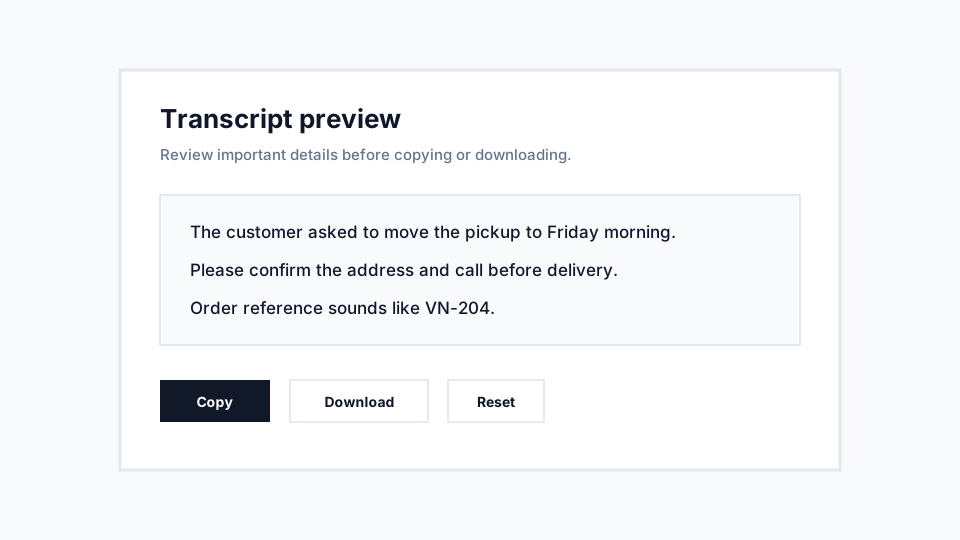
Input: a short WhatsApp voice notes clip with a customer request. Transcript outcome: readable text that can be checked for order details, copied into a support note, and assigned to the right follow-up task.
Input: a quick explanation or reminder. Transcript outcome: a text draft that can be rewritten into cleaner notes, flashcards, or a task list.
Input: a spoken draft recorded while moving quickly. Transcript outcome: rough text that can become an outline, caption, script note, or article section after editing.
Help with formats, supported sources, and your next step.
Practical notes about using VoiceNoteToText for this workflow.
The converter supports common voice-note formats including OGG and OPUS, plus MP3, WAV, M4A, and WebM for short clips and exported recordings.
You do not connect a WhatsApp account or messaging profile. The tool works with the audio file you choose to upload from your phone or computer.
Use it when you are in a meeting, commuting, studying, or handling support messages and need the message content in a readable format.
A practical first-time guide to choosing an audio source, transcribing it, and saving the transcript.
8 min readLearn the practical audio-quality factors that affect transcript reliability.
10 min readPlain-English explanation of processing, returned transcripts, lightweight metadata, and privacy-sensitive use.
9 min readConvert supported audio files such as MP3, WAV, M4A, OGG, OPUS, and WebM into readable text.
Use audio converterRecord a short microphone clip in the browser and turn the recording into text.
Record audioTurn saved voice messages from common messaging apps into searchable text.
Convert voice messagesExtract audio from a public URL, preview and download the original file, or transcribe it to text.
Use link tool